

General
Undoubtedly, every change in production must be properly communicated and, more importantly, tested. This applies to software deployment too. It may seem easier than it actually is—simply run the installer as an administrator, identify the appropriate registry value or file for the detection rule, and that’s it.
It’s not always the case that software behaves consistently across different contexts. Software may act differently when executed in a user context, a local administrator context, or a SYSTEM context. While testing software installation in a user context is straightforward—simply run the executable—elevated installations are another matter. The local administrator account differs significantly from the SYSTEM account, which Microsoft Intune uses for software deployment. For instance, the SYSTEM account’s user profile is located in “C:\Windows\System32\Config\systemprofile,” a location distinct from any other user profile. It’s also worth noting that the SYSTEM account, while having higher privileges, is subject to certain restrictions as well.
You could deploy the software directly to Intune, set is as available only for you and pray, but every change made to the package would increase your testing phase tremendously.
Therefore, it is advisable to test your elevated software deployments both in the SYSTEM context and locally to accurately simulate the Intune deployment environment and enhance your work efficiency.
Obtaining software
The easiest way to run software in various contexts is via PsExec tool. PsExec is a part of the Sysinternals suite, created in 1996 by Mark Russinovich for developers and IT Pros.
PsExec – Sysinternals | Microsoft Learn
Running the tool
After you download the archive with tool, unzip it to your preferred location, run the extracted PsExec64.exe, accept EULA and start testing.
There are two important parameters you’ll need to use: -i (so the program can run interactively with the currently logged in user) and -s (so the program will run in the SYSTEM context)
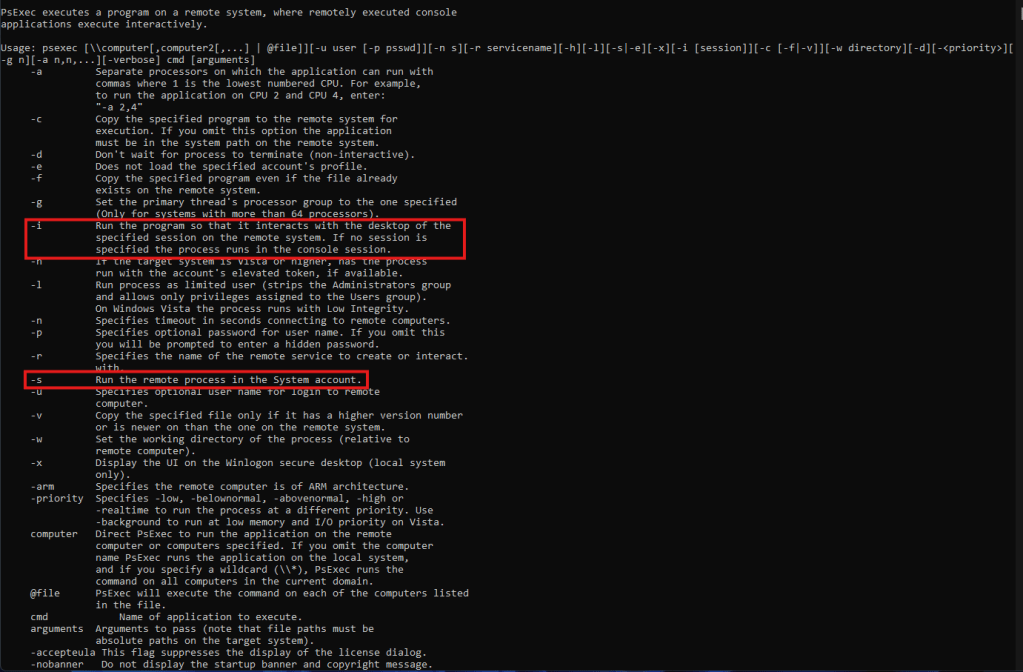
The syntax is very straightforward:
PsExec64.exe -i -s <path to your executable> / <command>
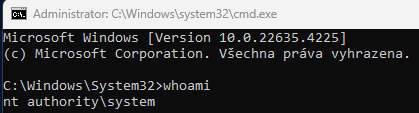
Example: PsExec64.exe -i -s cmd.exe
This will run an interactive command line in the SYSTEM context. You can easily verify that by running “whoami” command.
Conclusion
This robust tool allows you to effortlessly test your software deployment behavior, offering an experience akin to that of Microsoft Intune deployment, but without the delays and tedious troubleshooting that arise when issues occur.
Certainly, PsExec can be utilized for a range of applications; however, caution is advised as the SYSTEM context grants extremely privileged access to the device, which can lead to significant problems if misused. It is always advisable to test your software on devices that are not critical or in a production environment.
 Intune SW deployment