

General
Microsoft Intune is a great device management platform. But it lacks a critical feature. Users are not able to see any software installation in the SYSTEM context. This makes it impossible to deploy any software that requires a user input. Luckily, there is a solution: ServiceUI.exe
ServiceUI.exe is a system utility that allows for the creation and execution of user interfaces for Windows services. This executable is responsible for displaying any user interface elements associated with a particular service during installation or configuration processes. It helps streamline the management of services in Windows operating systems.
ServiceUI.exe
But where do you find the executable? It’s a part of the Microsoft Deployment Toolkit (MDT). You can download the MDT HERE. Once the installation is completed, you can find the ServiceUI.exe in “C:\Program Files\Microsoft Deployment Toolkit\Templates\Distribution\Tools\x64”. I recommend you to copy the file somewhere else so you can repeatedly use it in your deployments.

How ServiceUI works? Basically, it finds a user session of a specified process and shows the installation to the session while maintains the elevated privilege of the host process.
Deploying software with ServiceUI in Intune
The only supported app type to use the ServiceUI is Windows App (Win32). That way you can wrap all the required files into a payload and execute it on endpoints.
Deployment procedure
- Wrap the ServiceUI.exe together with the payload to be executed
- Source Folder: Folder with your payload (ex. C:\Source)
- Setup file: ServiceUI.exe
- Output Folder: Folder for the .intunewin output file

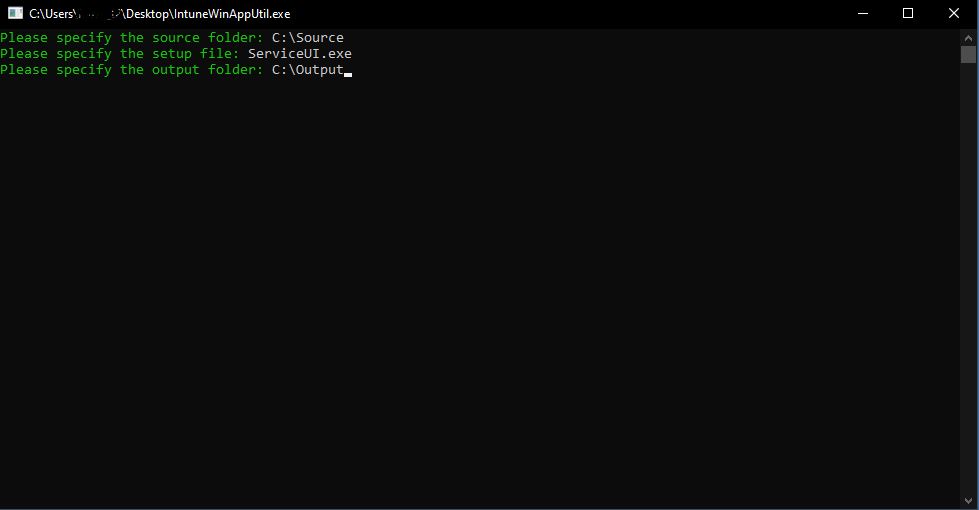
- Create a new Win32 app and upload the .intunewin file
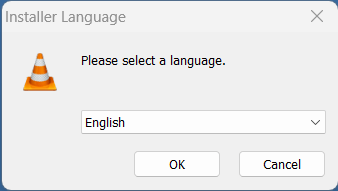
- In the Program section, use the install command .\ServiceUI.exe -Process:explorer.exe <program to be executed> (ex. .\ServiceUI.exe -Process:explorer.exe vlc-3.0.18-win64..exe)
- Set all the rest of the parameters as usual and assign the app
- Enjoy
Something to be aware of
Please mind that all the deployed software this way is running as SYSTEM with the highest privileges. Do not deploy PowerShell or CMD applications where users have an opportunity to take control over it and do whatever they want.
Additionally, ServiceUI is a really old piece of software that is not being actively developed by MS anymore. That means that it may contain various vulnerabilities and it’s a good idea not to keep in on the computer persistently and use it only in .intunewin packages (the content is deleted immediately after successful execution).
If you have the Windows Defender Exploit Guard active, it might block ServiceUI from finding any user session. If so, add it to a whitelist so it can run.
Conclusion
Using ServiceUI is the only workaround for displaying a content to end users while running as SYSTEM in Intune. This feature is here with us for years in the SCCM but Intune does not seem to support this feature in the near future. If you feel you need this feature natively supported, please raise a request on the MS Feedback Hub and hopefully we will one day see it live.
Helping Intune admins with software deployment
 Intune SW deployment
Leave a comment